

Image Marking in Nanobanana Pro: A Guide to Precision Editing
Direct AI edits to specific areas with Image Marking. Follow this step-by-step guide to using visual cues for precise, carefully targeted image transformations.
Put each edit exactly where you want it, and change only what you intend.
A familiar frustration with AI image editing is the "global change" problem: a request to adjust one small detail ends up altering the composition as a whole.
Image Marking resolves this with visual instructions placed directly on the image. Mark the areas you want to edit, and the AI knows precisely where to concentrate its creative work.
🌟 Pro Exclusive: Access to this advanced feature is limited to Nanobanana Pro.
Bring this level of precision into your creative process. Give it a try and see how a carefully placed edit changes your workflow.
What is Image Marking?
With Image Marking, you place visual references right on top of the image you want to edit:
- Annotate with Text: Add labels such as "bird," "car," or "window" directly to the canvas.
- Visual Cues: Use a simple line or mark to point out the area to edit.
Combining text with visual cues tells the AI both what needs changing and where to make that change. Together, these two inputs give you a new level of control.
Practical Example: Adding a Bird with Precision 🐦
For a practical example, we'll add a bird to a particular branch in a landscape photograph.
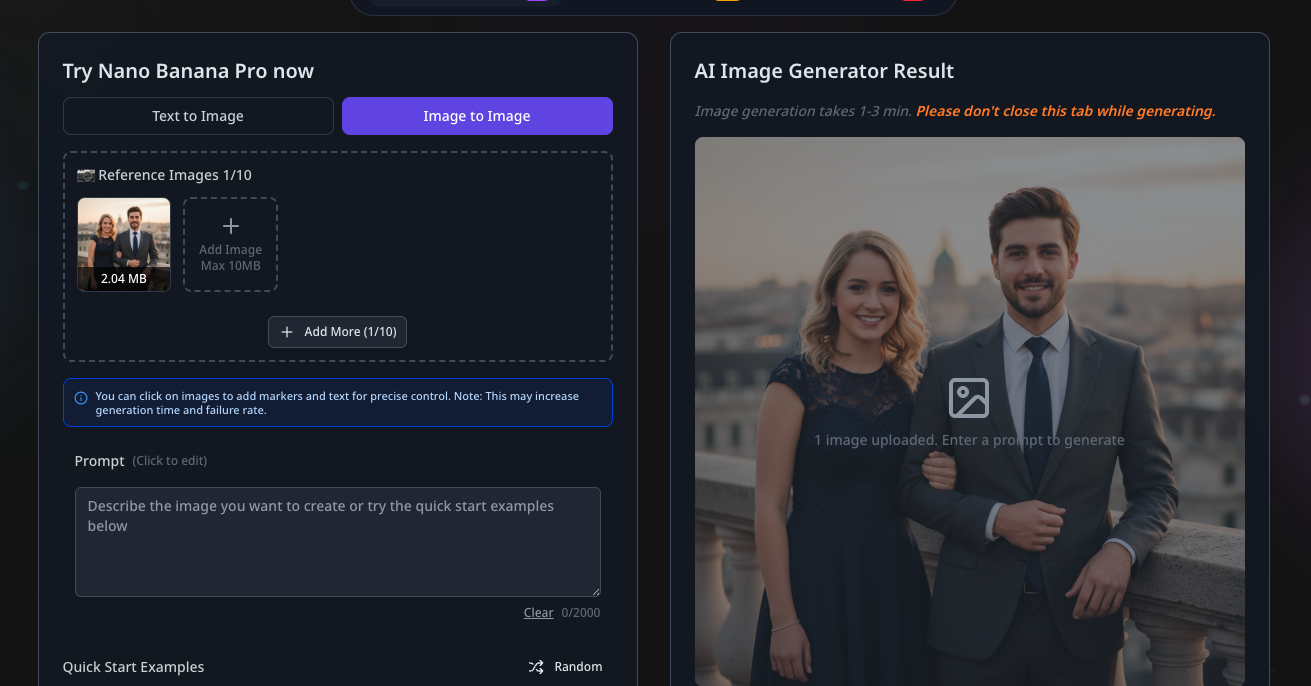
Step 1: Upload Your Source
Choose Image to Image mode, then upload the picture you want to work on. Your starting image can be a portrait, a landscape, or a detailed commercial photograph.
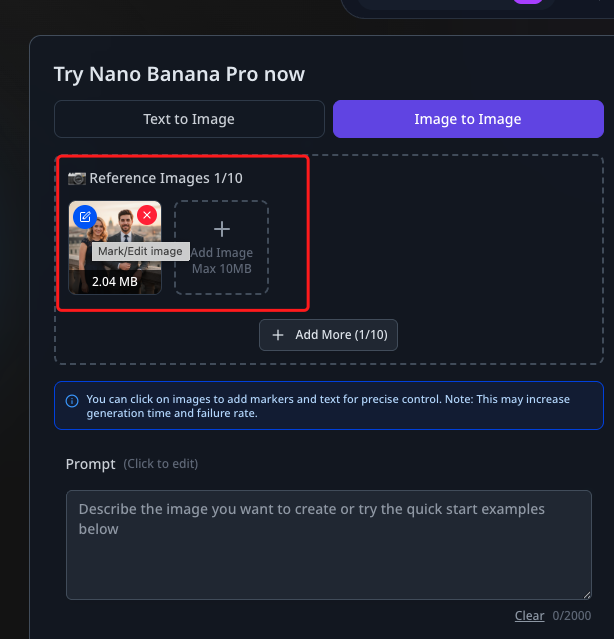
Step 2: Launch the Editor
After uploading, select Edit on the image thumbnail. This opens the dedicated Image Marking panel.
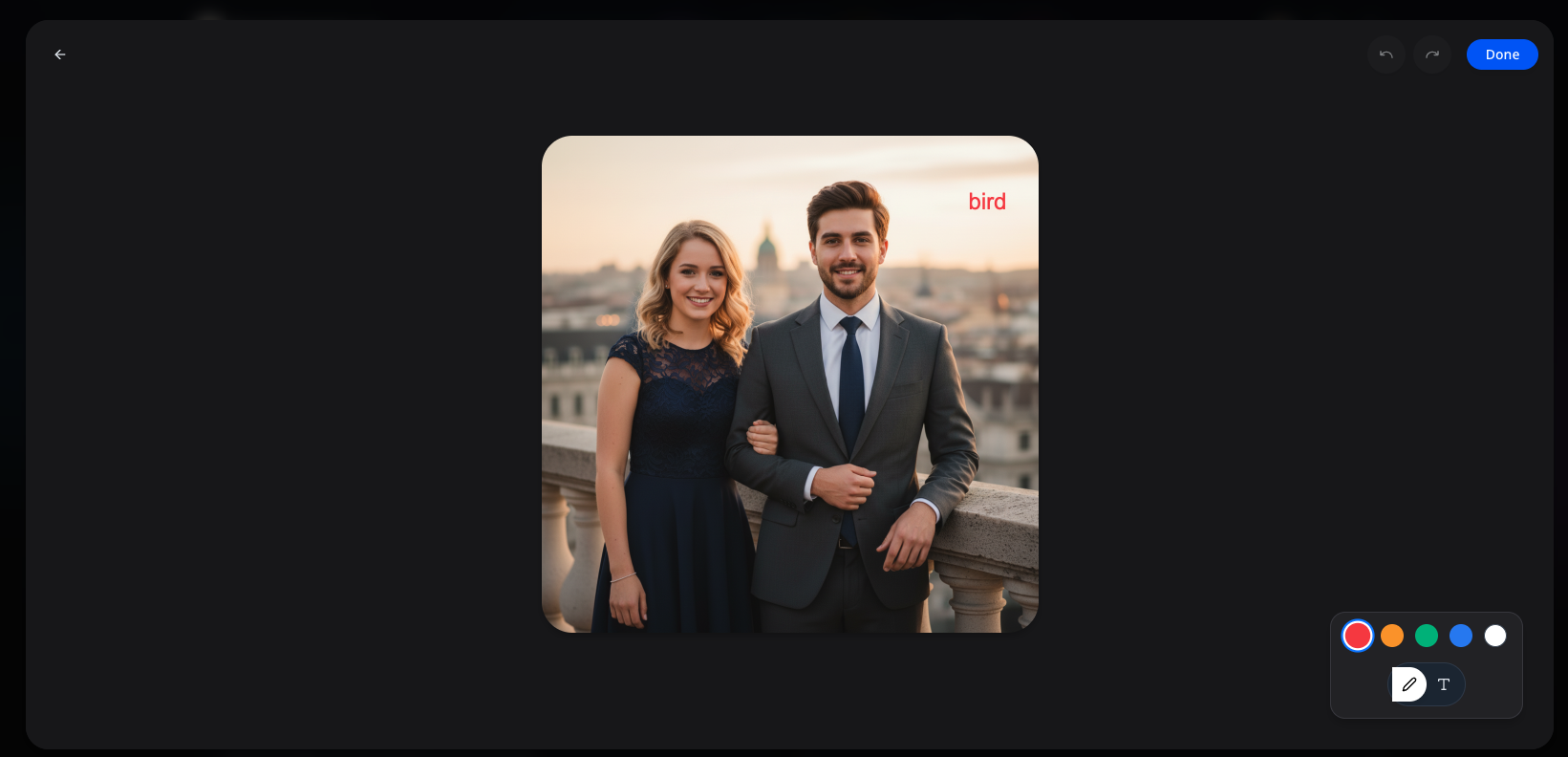
Step 3: Define the Location
In the marking panel, follow these steps:
- Find the precise position where the new element should appear.
- Label that spot with "bird" or outline it with a simple circle.
- Select Done to save the visual reference.
Pro Tip
Your marks don't need to be beautifully drawn. What matters most is making the intended position clear.
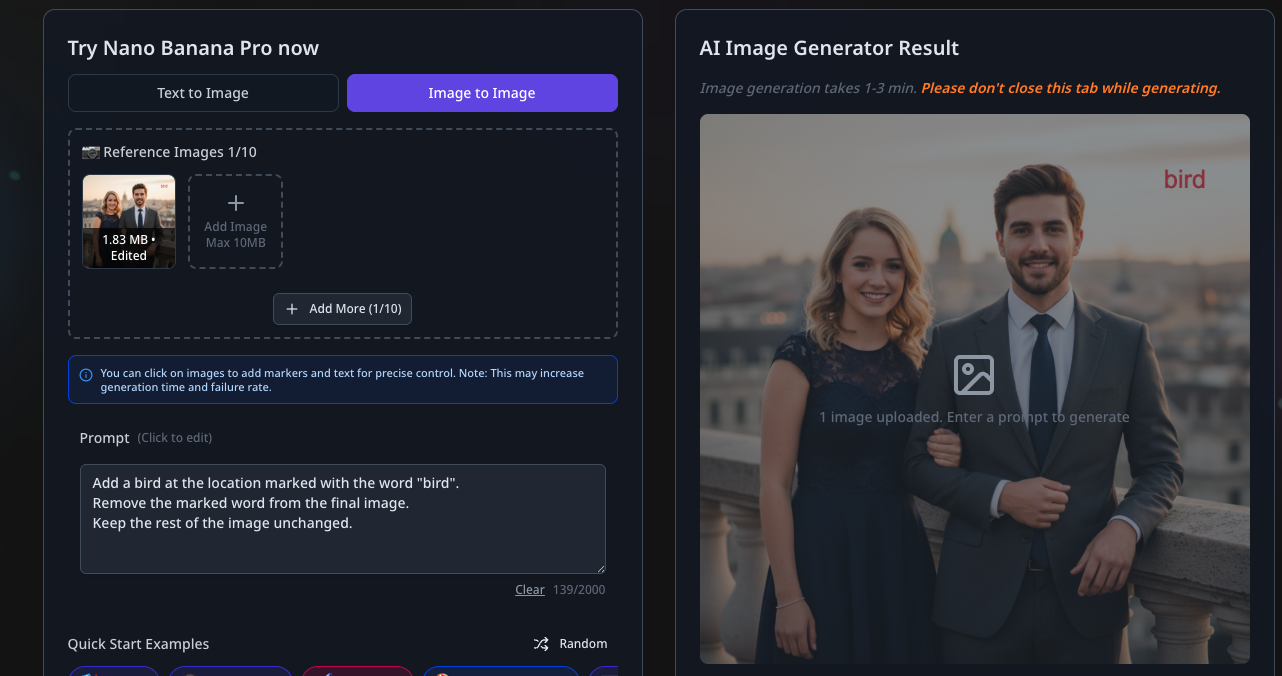
Step 4: Craft the Prompt
Go back to the generator and write a prompt that refers to the marks you added:
Add a realistic bird at the location marked with the word "bird".
Ensure the marked text is removed from the final output.
Keep the rest of the image, lighting, and composition unchanged.
The instruction makes your visual mark the main positional reference the AI uses when generating the image.
Step 5: Generate and Review
Select Generate to see the AI carry out the targeted edit.
What You Get:
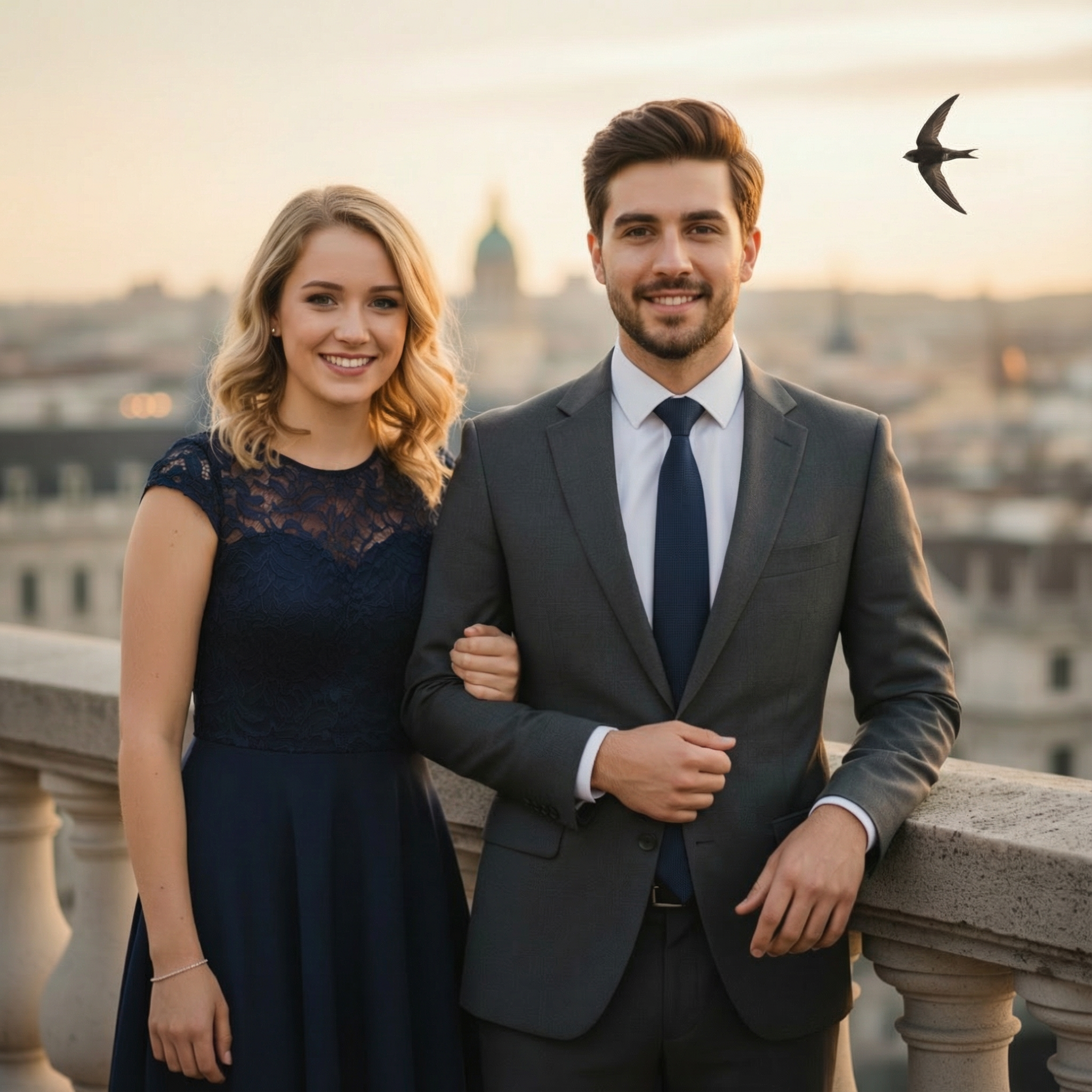
- The bird is placed precisely at your marked position.
- All background details, other subjects, and the image's overall style stay intact.
Why Use Image Marking?
Image Marking brings three main benefits compared with prompts that rely on text alone:
- Absolute Positioning: A point and a click replace awkward descriptions such as "the third window from the left on the second floor."
- Minimized Randomness: Keeping the AI focused on a defined area prevents unwanted alterations elsewhere in the image.
- Control Over Complexity: When a composition contains many elements, Image Marking gives the AI a clear reference so it can avoid confusion.
Pro Tips for Best Results
A few good habits will help you make the most of Image Marking:
- Simplicity is Key: Straightforward, uncluttered marks generally produce the most consistent and predictable results.
- Use Sparingly: Reserve marks for situations where exact control over placement is needed. Too many can sometimes make it harder for the model to interpret the surrounding context.
Note on Performance
The additional spatial guidance in Image Marking can make generation slightly slower than a standard edit. Very complex markings may also raise the chance of a generation error in rare cases.
For a result that needs improvement, try:
- Making the visual marks simpler.
- Describing the edit more fully in your text prompt.
- Marking fewer areas in the same pass.
Final Thoughts
Image Marking shifts AI editing from interpreting an uncertain intention to acting on precise instructions. For creators seeking complete control over their visual assets, it offers the ultimate editing tool.
Image Marking is an ideal fit when you want to:
- Place a new element at an exact set of coordinates.
- Change an individual object or texture while leaving the scene untouched.
- Spend less time on the "trial and error" cycle of AI generation.
With Image Marking, Nanobanana Pro stands out as the definitive tool for professional AI image editing.
Author

